How to Install M999 Game on Android – Step-by-Step Guide 2026
Installing the M999 Game on Android can be completed in a few simple steps when you have the correct APK file and a compatible device. Since an APK is installed manually rather than through the Google Play Store, Android may ask you to allow installation from the browser or file manager used to open the file.
This M999 Game installation guide explains how to download the APK, enable the required Android permission, install the application, and troubleshoot common installation errors. It also explains what to check before installing or updating the app.
M999 Game Android Requirements
Before you install M999 Game, prepare your Android phone or tablet.
You should have:
- A compatible Android device
- A stable internet connection
- Sufficient free storage
- The correct M999 Game APK
- Access to Android’s app installation settings
- A working device with normal security settings
The exact Android requirements can vary between APK versions, so check the information provided with the current version before installation.
How to Download M999 Game APK
The first step is to download the appropriate M999 Game APK for Android.
Visit the M999 Game website and ch
How to Install M999 Game on Android
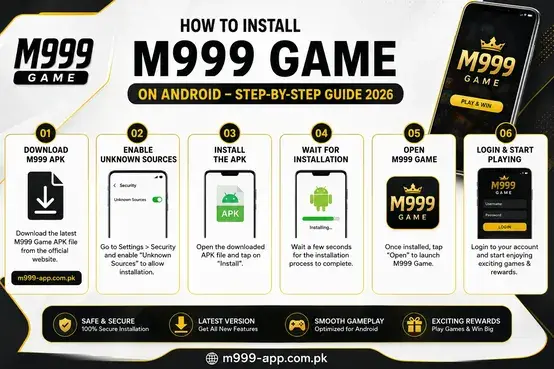
After downloading the M999 Game APK, follow these steps:
Step 1: Find the APK
Open Files, My Files, or your phone’s File Manager, then open the Downloads folder. Find the M999 Game file ending in .apk.
Step 2: Open the APK
Tap the APK to begin installation. If Android blocks it, you may need to allow installation from the app you used to open the file.
Step 3: Allow Unknown App Installation
If prompted, go to:
Settings → Apps → Special app access → Install unknown apps
Select your browser or file manager and enable Allow from this source. Only enable this permission for a source you trust.
Step 4: Install the App
Return to the APK and tap Install. Wait for Android to complete the installation without closing the installer.
Step 5: Launch M999 Game
Tap Open after installation, or find the M999 Game icon in your app list.
Step 6: Sign In
Enter your existing account credentials to continue. For detailed sign-in instructions, see our M999 Game Login guide.
Quick tip: If the APK won’t install, first check your available storage, Android compatibility, and whether the APK downloaded completely.
How to Enable Unknown App Installation on Android
Android includes security restrictions that can prevent applications from being installed from sources other than the Google Play Store.
If your device blocks the APK, you may need to give the application used to open the APK permission to install unknown apps.
The general process is:
- Open Settings.
- Select Apps or Security.
- Open Special app access, if available.
- Select Install unknown apps.
- Choose the browser or file manager you used to open the APK.
- Enable Allow from this source.
- Return to the downloaded M999 Game APK.
- Start the installation again.
Android menus can differ depending on the device manufacturer and operating system version.
For security, only enable APK installation for a source you trust. You can disable the permission again after completing the installation.
M999 Game APK Not Installing? Try These Fixes
If M999 Game APK is not installing, the problem may be related to storage, compatibility, permissions, or the downloaded file.
Check Available Storage
An Android device needs sufficient free space to install an application.
If your phone is nearly full, remove unnecessary files or applications and try the installation again.
Download the APK Again
An incomplete or damaged download can cause installation errors.
If the APK will not open or Android reports that the application cannot be installed, delete the file and download it again from a trusted source.
Check Android Compatibility
Not every APK works on every Android device.
If the current M999 Game APK requires a different Android version or device architecture, installation may fail.
Check the application’s current requirements before trying another installation.
Check Installation Permission
If Android blocks the installation, make sure the browser or file manager you used has permission to install unknown apps.
You do not need to enable this permission for every application on your phone. It should be enabled only for the specific source you trust.
Check for an Existing Installation
If an older version of M999 Game is already installed, a new APK may sometimes conflict with it.
Check your installed applications before attempting another installation.
If you decide to remove an existing version, consider whether any locally stored application data could be lost.
Common M999 Game Installation Errors
“App Not Installed”
This message can have several causes, including an incompatible APK, insufficient storage, a damaged download, or a conflict with an existing installation.
Check the APK, free storage, Android compatibility, and existing version before trying again.
“For Your Security, Your Phone Currently Isn’t Allowed to Install Unknown Apps”
This message generally means Android has blocked installation from the source that opened the APK.
If you trust the source, open the relevant Install unknown apps setting and allow installation for that browser or file manager.
APK File Will Not Open
If tapping the APK does not start installation, confirm that the download completed successfully and that the file has an .apk extension.
A fresh download may resolve a corrupted or incomplete file.
Installation Stops Before Completion
If installation stops unexpectedly, check your device’s available storage and restart the installation.
If the problem continues, the APK may not be compatible with your device or may not have downloaded correctly.
How to Check if M999 Game Was Installed Successfully
After installing the application, open it from the installation screen or your Android app list.
You can also open:
Settings → Apps
and look for M999 Game among the installed applications.
If the application launches without an installation or compatibility error, the installation was successful.
How to Update M999 Game APK
When a newer version becomes available, Android users may need to download the updated APK.
Before updating M999 Game:
- Check the new version number.
- Confirm that the APK comes from a trusted source.
- Make sure your device has enough storage.
- Close the existing application.
- Download the updated APK.
- Open the APK and follow the installation instructions.
- Launch M999 Game after the update.
If Android reports a package or signature conflict, the new APK may not be compatible with the existing installation.
M999 Game Installation Safety Tips
Manual APK installation requires users to pay attention to the source of the file and the permissions requested by Android.
For a safer installation process:
- Download APK files from a source you trust.
- Check the version before installing.
- Avoid modified or suspicious APK files.
- Keep Android security features enabled.
- Review requested permissions carefully.
- Do not share your M999 Game password or OTP.
- Keep your Android operating system updated.
- Remove unnecessary APK files after installation.
An APK should not require you to provide your account password or verification code simply to install the application.
What to Do After Installing M999 Game
Once the installation is complete, open the application and check that it works correctly.
Existing users can proceed to the login screen and enter their account information.
If you experience problems signing in, our M999 Game Login guide can help you understand the normal login process.
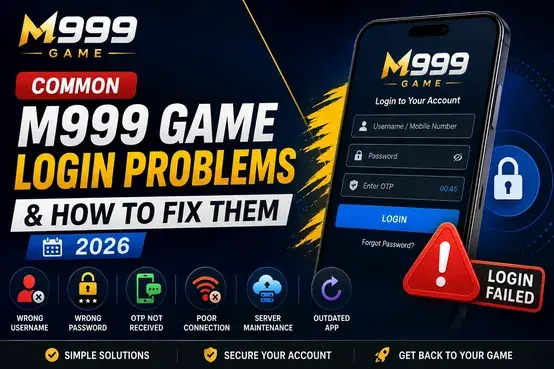
If you experience repeated login, OTP, or password problems, check our guide to common M999 Game login problems for additional troubleshooting steps.
Frequently Asked Questions
How do I install M999 Game on Android?
Download the M999 Game APK, open it from your Downloads folder, allow installation from the relevant source if Android requests permission, and tap Install. Once installation is complete, open the application.
Why is my M999 Game APK not installing?
Common causes include insufficient storage, an incomplete APK download, Android compatibility issues, disabled installation permission, or a conflict with an existing application version.
Where is the M999 Game APK stored after downloading?
Most Android devices save downloaded files in the Downloads folder. You can also use your phone’s file manager to search for the .apk file.
Can I update M999 Game using a new APK?
A compatible newer APK can generally be used to update an existing installation. However, Android may reject the update if there is a package, signature, or compatibility conflict.
What should I do if M999 Game does not open after installation?
First, restart the application and check your internet connection. If the issue continues, check your Android version, available storage, and APK compatibility. Reinstalling a verified compatible version may also help.
Is it safe to install an APK on Android?
APK installation itself is a normal Android installation method, but the safety of an APK depends heavily on where the file comes from. Use a trusted source and avoid suspicious or modified files.
Final Thoughts
The M999 Game Android installation process involves downloading the appropriate APK, opening the file, allowing installation from the relevant source when required, and completing the Android installation steps.
If the application does not install, check the APK download, available storage, Android compatibility, and installation permissions. Once M999 Game is installed successfully, you can open the app and use the available login options.
For the best experience, keep your application version current, protect your account credentials, and download APK files only from sources you trust.